Upgrade Your Dell Computer: Essential Insights for Users


Intro
Upgrading your Dell computer can feel like embarking on a daunting journey; however, it is a path laden with rewards that can significantly enhance your system's performance and longevity. For tech enthusiasts, gamers, and IT professionals, understanding how to elevate a Dell machine from decent to dazzling can transform how you interact with digital tasks, gaming experiences, and professional applications.
The heart of the matter lies in knowing what components can be upgraded. From RAM and SSDs to GPUs, each part plays a crucial role in the overall efficacy of your system. Remember, not every component will be compatible with every model, so navigating compatibility factors is paramount. This guide aims to rip the band-aid off upgrading complexities and bake in valuable insights that ease the process.
What We Will Cover
- Upgrade Eligible Components: Delve into specific parts that can be tweaked or swapped.
- Compatibility Considerations: Learn what factors determine if your upgrades will work seamlessly with your existing setup.
- Benefits and Challenges: Highlight the perks of upgrading versus the possible hurdles.
- Informed Decisions: Offer a systematic approach so you can select the upgrades that bring the most bang for your buck.
By the end of this guide, whether you’re looking to boost gaming performance or simply want a snappier, more responsive machine, you should have a clearer picture of how to make your Dell computer truly stand out in today’s tech landscape.
Understanding the Need for Upgrades
In today's fast-paced digital landscape, the demand for robust computing power has surged. Regardless of whether one uses a Dell computer for gaming, graphic design, or day-to-day tasks, staying ahead of the technological curve necessitates regular upgrades. Without these enhancements, a system may lag behind, undermining both efficiency and user experience. The importance of understanding the need for upgrades cannot be overstated; it directly impacts performance, productivity, and the lifespan of a computer.
Reasons to Upgrade
There are myriad reasons why upgrading your Dell computer can be a game changer. Here are some pivotal motivations:
- Boosting Performance: Often, older systems struggle to keep up with the demands of newer software and applications. Upgrading components like RAM or the CPU can breathe new life into aging machines.
- Enhanced Productivity: Imagine trying to run demanding software on outdated hardware. Frustration mounts as you wait for applications to load. By upgrading, tasks can be completed more efficiently, saving both time and energy.
- Gaming Needs: Gamers, in particular, seek cutting-edge graphics and speed. Upgrading a graphics card or adding more RAM can significantly enhance the gaming experience, allowing for smoother gameplay and higher resolutions.
- Future-Proofing: As software evolves, older hardware may become obsolete. Investing in upgrades signals a commitment to longevity and staying current, making it easier to adopt upcoming technologies.
- Cost-Effectiveness: Rather than investing in a new system, upgrades can serve as a cost-effective solution. Many users find that upgrading individual components is less expensive and often yields immediate improvements.
Common Signs of an Underperforming System
Unfortunately, the signs of an underperforming system often creep up silently, only to surface at inconvenient moments. Here are a few telltale indicators:
- Frequent Lagging or Freezing: If your computer continually pauses or freezes during tasks, it’s often a clear sign that your system is struggling to cope with current demands.
- Slow Boot Times: Spending precious minutes waiting for your system to start up can be frustrating. A sluggish boot process typically suggests that upgrades are necessary.
- Inability to Run New Software: Encountering errors or warnings when attempting to install new programs? This is a formidable indication that the hardware may not meet the specified requirements for those applications.
- Excessive Heat or Noise: If your system fans run louder than a freight train or the computer gets excessively hot, it could signal that components are working overtime, hinting that it's time for an upgrade.
- Frequent Crashes: Nothing can be more disheartening than losing unsaved work to sudden crashes. A persistent issue like this often implies that critical components like RAM or the hard drive are not performing optimally.
Upgrading isn't just a technical necessity; it becomes a means of ensuring a seamless, efficient, and enjoyable experience. Understanding these elements highlights the importance of taking a proactive approach in managing your equipment. Armed with this information, you’re better equipped to consider the next steps in enhancing the performance and longevity of your Dell computer.
Types of Dell Computers and Their Upgrade Potential
Upgrading your Dell computer can breathe new life into the system, making it more responsive and capable of handling demanding tasks. Understanding the different types of Dell computers is vital because each has unique upgrade potentials and considerations. Whether you are a gamer who requires high performance, a professional who needs reliable functionality, or an everyday user looking for efficiency, knowing the strengths and limitations of your Dell system is key.
Dell Desktops
Dell desktops are often the backbone of many businesses and households. They typically offer greater upgrade potential compared to their portable counterparts. This is primarily due to the spacious internal layout that allows users to add or replace components with relative ease. For gamers, upgrading the graphics card can drastically improve visual performance during intense gameplay. Similarly, boosting the RAM can enhance multitasking efficiency for power users.
- Benefits of upgrading Dell desktops include:
- Simplified access to components due to the larger case size.
- A wider range of compatible components, from CPUs to graphics cards.
- Potential for setting up a dual-monitor system that improves productivity.
For example, upgrading a Dell OptiPlex with a newer NVIDIA or AMD graphics card can turn a basic office machine into a capable gaming rig. But, be cautious — ensure your power supply can handle the extra load.
Dell Laptops
Dell laptops are designed with portability in mind, which somewhat limits their upgrade capabilities. Still, they should not be overlooked when considering upgrades. Many models allow you to enhance RAM or swap out the hard drive. For instance, moving from a traditional hard disk drive to a solid-state drive can provide significant speed improvements, making the laptop boot faster and load applications quickly.
- Key points for Dell laptop upgrades:
- While upgrades are limited, they can still lead to noticeable performance improvements.
- Always check for compatibility with specific models; not all Dell laptops allow easy upgrades.
- Consider utilizing external storage solutions as a workaround for limited internal upgrade options.
For example, upgrading a Dell XPS's RAM from 8 GB to 16 GB may enhance performance in demanding applications like video editing software.
Dell All-in-Ones
Dell’s all-in-one computers combine compactness with style and boast a number of features suitable for both casual and power users. The upgrade potential for these systems is often more restricted than that of desktops, primarily because many components, like the CPU and GPU, may be soldered to the motherboard. However, some models do provide opportunities to upgrade RAM or storage.
- Considerations for upgrading Dell All-in-Ones:
- Be aware that upgrades may require specialized tools or expertise; often the whole unit must be opened up, which can be daunting.
- Assess the cost versus benefit when considering an upgrade, as it may not always be economical.
For example, if you possess a Dell Inspiron All-in-One with a mechanical HDD, swapping it for an SSD can yield a substantial performance spike. Accessing that hard drive might not be a straightforward task, but the end result can justify the effort.
In summary, identifying the type of Dell computer you own helps determine your upgrade path. Each type—desktops, laptops, and all-in-ones—has its strengths and weaknesses concerning hardware enhancements. Careful consideration of your usage needs will guide your upgrade decisions effectively.
Key Components for Upgrading
Upgrading your Dell computer isn’t just a change; it's an investment in functionality and longevity. The key components involved in this process can greatly impact performance, responsiveness, and overall user experience. Each component plays a role in how well your system runs, from mundane tasks to heavy-duty gaming or resource-intensive applications. Understanding these components helps you make decisions that align with your computing needs.
Processing Units
Processing units, specifically CPUs, are the heart of any computer. The performance of your system hinges heavily on this component. A well-chosen CPU can dramatically enhance productivity, reduce lag, and make multitasking a breeze.
Selecting Suitable CPUs


When it comes to selecting suitable CPUs, one must consider several aspects, such as architecture, core count, and clock speed. A modern multi-core processor can handle multiple tasks seamlessly, which is especially important for gamers and professionals running demanding software. Look into AMD Ryzen or Intel Core processors; both have their unique strengths that cater to different usage scenarios. The key characteristic here is that a suitable CPU not only meets your current needs but also offers room for future upgrades.
A downside could be compatibility. Different motherboards support different CPUs, so you must ensure the CPU fits well with your existing hardware. Misalignment can result in poor performance or even failure to boot.
Installation Considerations
Installing a new CPU isn't just about slapping it into place; there are specific considerations to keep in mind. This includes the thermal paste application and ensuring that the CPU is correctly seated in the socket. Failing to follow installation guidelines can lead to overheating or damage to the component itself.
The advantage of a proper installation is enhanced performance and reliability. Ensuring your system has adequate cooling solutions can prolong component life and improve overall efficiency. However, the installation process can be intimidating for some, leading to errors that could easily be avoided with careful planning.
Memory (RAM)
RAM significantly impacts how well your system can multitask and handle applications effectively. Upgrading your memory can lead to fewer slowdowns when opening multiple tabs or using resource-heavy applications.
Determining Compatibility
Before snapping up new RAM, determining compatibility with your existing system is crucial. Different motherboards support different memory speeds and types, such as DDR3 or DDR4. A suitable RAM not only fits physically but also needs to align with the motherboard's specifications to fully utilize its potential.
Checking for maximum memory capacity that your motherboard supports is wise. You can often find this information in your system’s manual or on the manufacturer’s website. A misstep can result in wasted resources or, worse, non-functional upgrades.
Performance Impact
Investing in greater amounts of RAM often results in noticeable boosts in performance. Imagine being able to switch seamlessly between high-demand applications without the dreaded lag. A unique feature of modern RAM is dual-channel setups, which can further enhance speeds.
However, buying more RAM than necessary doesn’t always equate to better performance. If your tasks don't require high memory usage, you might end up spending money for marginal gains. A well-planned approach toward upgrading RAM can yield significant benefits without upsetting your budget.
Storage Solutions
The storage method you choose can make or break your system's responsiveness. Moving from traditional hard disk drives (HDD) to solid-state drives (SSD) can lead to dramatic improvements in load times and overall reliability.
HDD vs. SSD: Pros and Cons
When weighing the pros and cons of HDD versus SSD, different aspects come into play. HDDs typically offer larger storage capacities at lower costs, making them suitable for mass data storage. However, they lack in speed. SSDs, on the other hand, provide faster read/write speeds, resulting in quicker boots and application launches.
For many, the choice boils down to needs versus budget. Solid-state drives are often the way to go for those looking for performance, while hard drives can still play a crucial role in data backup.
Installation Procedures
The installation of storage components, whether HDD or SSD, must be executed with care. It’s important to ensure the drive is secured properly within the case and that connections are correct. Not paying attention to the details can lead to hardware conflicts or failure to recognize the disk altogether.
In a well-set-up system, the new storage drive can provide a significant performance boost, ultimately offering a better user experience. However, for those less familiar with installation, clear and concise guidelines are recommended to avoid mishaps.
Graphics Cards
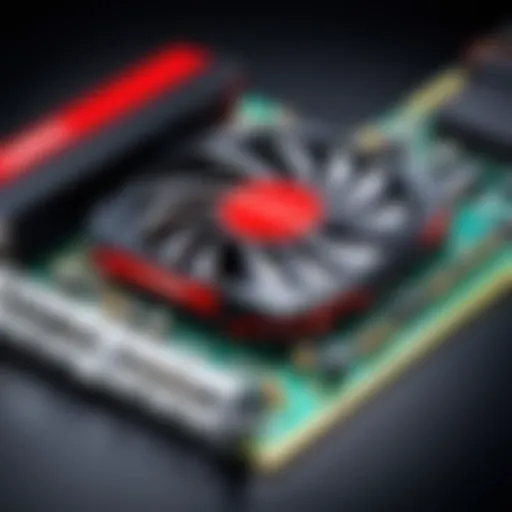
For gamers or creative professionals, upgrading the graphics card is often the most crucial aspect of performance enhancement. The right graphics card unleashes your system's full potential, enabling rich visuals and smoother gameplay.
Evaluating Graphics Needs
When discussing graphics needs, understanding your typical usage is paramount. A graphic designer's requirements greatly differ from a casual gamer’s. Assessing factors such as resolution and types of applications used can inform your decision here. High-performance gaming might necessitate a more advanced GPU for better rendering and frame rates, while basics might not need that extra kick.
The benefit of evaluating needs ensures you select a graphics card that serves your purposes without overspending. Overshooting your graphics capabilities can lead to unnecessary costs while underestimating them might result in underwhelming performance.
Compatibility Checks
Next, conducting compatibility checks is essential before purchasing a new graphics card. Factors such as space in the case, power supply capacity, and motherboard compatibility must be taken into consideration. A powerful graphics card in a system not designed to support it can cause performance bottlenecks or even physical issues with hardware fitting.
This step is significant because understanding compatibility prevents headache and financial loss down the road. A cohesive relationship between components leads to an optimized setup where all elements work in harmony.
Assessing Compatibility
Assessing compatibility is one of the cornerstones of a successful computer upgrade, especially when it comes to Dell computers. Failing to ensure that each component aligns with the existing system can result in wasted resources and frustrating setbacks. This particular aspect demands attention because it not only determines whether the upgrade will work but also how efficiently it will enhance performance. Individuals often jump headfirst into upgrades without considering these specifics, leading to a domino effect of problems. Therefore, understanding compatibility can save time, money, and a whole lot of hassle.
Motherboard Specifications
The motherboard acts as the backbone of any computer system. It connects all other components and determines not just what can be installed, but also how well they will perform together. For starters, knowing the motherboard’s chipset is crucial. Chipsets control how the CPU communicates with the memory and other peripheral devices. Each generation of processors is designed to work with specific chipsets; thus, compatibility here is non-negotiable.
Moreover, there's also the question of size. Motherboards come in different form factors, such as ATX or microATX. If you're looking to upgrade your graphics card, for instance, ensuring that your motherboard has the appropriate PCIe slots is essential. A classic example is when someone excitedly purchases a high-end graphics card, only to find out it won't fit in their smaller motherboard.
Additionally, dual or quad-channel memory support is another specification to consider. If upgrades involve RAM, the motherboard must support the increased memory modules for optimal performance. Compute-intensive tasks, like gaming or data analysis, benefit significantly from memory that can be accessed quickly and efficiently.
Always check your motherboard's specifications before purchasing new components to ensure they will work together seamlessly.
Power Supply Constraints
The role of the power supply in a computer upgrade cannot be understated; it's akin to the fuel that powers a car. If the power supply is not up to par, even the flashiest of components will fall short of expectations. Dell desktops and laptops often come with specific power supply ratings, so knowing the wattage and whether it can handle added components is vital.


For instance, upgrading to a power-hungry graphics card requires more than just slapping in a new part. You'll need a power supply that can deliver adequate wattage and has the proper connectors. Failing to consider this might lead to the system crapping out unexpectedly or, in worse cases, damaging newly installed components.
Another consideration is the efficiency rating of the power supply. Look for those rated by the 80 PLUS certification, which indicates higher efficiency and lower heat output, enhancing overall system stability. A higher-quality power supply may come at a premium, but the long-term benefits—such as improved longevity of components—often make it a wise investment.
Upgrade Process: Step-by-Step
Upgrading a Dell computer may seem daunting at first, but taking a systematic approach can simplify the process significantly. Understanding each phase of the upgrade process—preparation, execution, and verifying that everything works as it should—ensures that you not only enhance your system’s capabilities but also protect your investment. This guide aims to break down each step, providing clarity and actionable advice tailored for tech enthusiasts, gamers, and IT professionals alike.
Preparation Before Upgrading
Backup Important Data
Before embarking on your upgrade journey, it's crucial to safeguard your data. Backing up important data acts as a safety net, protecting against any unforeseen hiccups during the upgrade. Imagine going through all the effort of installing new components only to find that your precious files are lost in the shuffle. By having a backup in place, you can avoid the heartbreak associated with data loss.
The key characteristic of this step is its proactive nature. It’s a simple yet effective way to keep your work and personal files secure. You can utilize various methods for backup, such as using cloud storage services like Google Drive or employing an external hard drive. Each option has its unique features—cloud backups offer accessibility from anywhere while external drives might provide more control over your data security.
Advantages of this step are clear: peace of mind, security against loss, and a smoother upgrade process. On the flip side, one potential disadvantage might be the time it takes to perform a thorough backup, especially if you have a considerable amount of data.
Gather Necessary Tools
The second part of your preparation involves gathering necessary tools for the upgrade. This includes basic tools like screwdrivers, anti-static wrist straps, and possibly more specialized tools depending on the specific upgrades you're planning to implement. The key characteristic here is having everything at your fingertips. This avoids unnecessary delays and frustrations during the process.
When you have your tools ready, you pave the way for a more efficient upgrade experience. It's not just about having the tools; it's also about ensuring they're suitable for your specific Dell model. For example, certain laptops might require a specific screwdriver type that’s not obvious at first glance, making it worthwhile to do a bit of research ahead of time.
The unique feature of this preparation step is that it not only saves time but also decreases the likelihood of damaging components or losing screws and parts in the process. However, some people may find themselves overwhelmed by the variety of tools available, which can complicate their plan. A focused checklist can help mitigate this issue.
Executing the Upgrade
Disassembly of Computer Case
With your preparations complete, it’s time for the disassembly of the computer case. This step is straightforward, yet it needs to be carried out with care. Most Dell computers come with screws that hold the panels in place, and depending on your model, you may need to remove various hard drives or other components just to gain access to the area you want to upgrade.
The key characteristic of this process is ensuring that you’re cautious—using proper techniques to avoid any damage. Familiarizing yourself with your specific model's layout is essential here. Failure to do so can lead to stress and confusion in an already complex situation.
This step gives you access to the inner workings of your computer and allows you to upgrade components such as RAM or storage drives. However, disassembling without consultation of your user manual can lead to complications, like forgetting where screws belong or damaging fragile circuits.
Installing New Components
Once your case is open, the moment you’ve been waiting for arrives—installing new components. This step involves physically inserting and connecting your new hardware. Make sure to handle each component with care, especially graphics cards and CPUs, as they are more sensitive to static electricity and physical mishandling than other parts.
The key characteristic here is precision. Each connection must be secure and free of interference. For instance, aligning RAM sticks properly can make or break the entire upgrade. Knowing how to handle these components is advantageous. You’ll need to ensure compatibility with the motherboard and that power supply constraints are taken into account.
Notably, a unique aspect of this step is that it often feels like a puzzling challenge, fitting the pieces together for the best performance. The advantage of being meticulous in this area is evident; a successful installation leads to prolonged system longevity. But if mishandling occurs or if a component isn't compatible, it could spell disaster for your upgrade efforts.
Testing and Troubleshooting
Checking System Boot
Once everything is in place, checking system boot becomes the next crucial phase. Before you can revel in your upgraded system, you need to ensure that it powers on correctly. This process can be nerve-wracking, but it’s the litmus test of whether your upgrade has succeeded.
The key characteristic of this phase is testing to see if the system recognizes the new hardware. If you hear beeping sounds or the system fails to boot, it might indicate a problem that needs addressing. Taking the time to test at this point is smart, as it allows you to troubleshoot before closing up the case.
This step serves as a foundational check—if the system fails to recognize the new components, you may need to revisit your installation steps. Not being diligent can lead to extended troubleshooting down the line, making this initial verification very much worth your effort.
Diagnosing Issues
If problems arise, diagnosing issues is essential for a successful upgrade. After all, not every upgrade goes off without a hitch. This phase involves systematically going through potential problems, from checking hardware compatibility to ensuring that all cables are connected securely.
The key characteristic of this process is its analytical nature. If something doesn’t function as expected, identifying where the fault lies is crucial. A systematic approach saves time and minimizes frustration. Once you find the source of any issues, you may need to consult forums or manuals to find solutions specific to the components you've installed.
This step can also highlight your problem-solving skills—figuring out what's wrong often leads to better understanding and more informed decisions in the future. Ultimately, while some might find troubleshooting to be a hassle, the knowledge it brings is invaluable for future upgrades.
"Understanding the upgrade process is as important as the upgrades themselves; it’s the roadmap that guides your journey to a more powerful Dell computer."
Investing time and effort into mastering this upgrade process equips you with the knowledge and confidence to enhance your Dell computer effectively.
Post-Upgrade Considerations
After a successful upgrade of your Dell computer, there are a few important things to keep in mind. These considerations can significantly impact how the new components perform and how your system operates overall. This is not just about improving efficiency but also ensuring that your upgraded system runs smoothly and meets your daily needs.
Upgrading means not just hardware changes, but system adjustments too.
Software Updates and Drivers
Keeping your software up to date is crucial after any upgrade. When you introduce new hardware, it’s possible that the existing software isn’t fully equipped to manage these changes. This can lead to a range of issues, from system crashes to underperformance. Manufacturers like Dell often release updates that improve compatibility and performance with new components. A failure to update can leave your system vulnerable, creating gaps in how it operates.


- Check for Updates: After upgrading, you should visit the official Dell website or use the Dell Update application to download and install the latest drivers. This is essential to ensure both your new and existing hardware are functioning properly.
- Operating System Updates: It’s not just hardware; your OS needs to be compatible, too. Ensure that your OS is up to date to optimize performance with the new components.
By keeping your drivers and operating systems updated, you can resolve many pitfalls that can come post-upgrade, ensuring your system runs as smooth as silk.
Performance Optimization
Optimizing your computer’s performance post-upgrade is a game changer. It’s one thing to replace parts, and another to make them function together seamlessly. Let’s delve into how you can squeeze every bit of power from your upgraded system.
Adjusting Settings
Adjusting settings after hardware upgrades helps align the new parts with your computing habits. One significant aspect is modifying the power settings to ensure efficient use of energy while achieving high performance. For example, you can enable
- High-performance mode, which reduces latency in gaming or CPU-intensive tasks.
- Adjust visual effects in the operating system for better functionality.
The key characteristic of adjusting settings is that it's customizable; this makes it a popular choice for those looking to enhance performance beyond hardware specs. For instance, in gaming, tweaking graphics options can give you frames per second (FPS) improvements significant enough to notice. The downside? Some settings adjustments might lead to increased power consumption or can strain older components that aren’t as robust as the new ones. So, always balance performance with what your system can handle.
Monitoring Performance
Monitoring your performance is the yardstick by which you can measure the effectiveness of the upgrades you’ve made. Post-upgrade, you should keep an eye on system temperature, resource usage, and performance benchmarks to ensure everything's functioning at tip-top shape. This involves using monitoring software that tracks:
- CPU usage
- Temperature levels
- Memory utilization.
The benefit of monitoring performance is that it allows you to preemptively identify problems before they escalate into significant issues. One unique feature is that many monitoring tools can provide real-time data, so you can adjust settings based on current performance rather than relying on historical data.
However, remember that constant monitoring might hog system resources if done with too many applications running simultaneously, which can ironically reduce performance. Balance is key here.
In summary, post-upgrade considerations are not merely an afterthought; they play a central role in harnessing the full potential of updated hardware. Through diligent software management and thorough performance tuning, users can ensure their Dell systems not only keep pace but also remain a step ahead in their computing needs.
Potential Challenges and Solutions
Upgrading a Dell computer can be a rewarding journey, yet it is not without its hurdles. Potential challenges and their solutions are crucial for anyone looking to enhance their device's performance. Addressing these challenges head on ensures not only a smoother upgrade experience but also maximizes the benefits of the enhancements being made.
Identifying Incompatibilities
A common issue when upgrading any computer system, including those from Dell, is encountering component incompatibilities. This might occur when replacing parts such as the CPU, RAM, or graphics card. It’s not a small matter. If you don’t catch these incompatibilities upfront, you may end up with hardware that simply won’t work together.
For instance, consider the scenario of upgrading your RAM. If you were to pair DDR4 RAM with a motherboard designed for DDR3, you’re headed for disappointment. It’s vital to verify specifications such as:
- Motherboard Support: Confirm that your motherboard can accommodate the new hardware.
- Power Requirements: Ensure your power supply unit can support the additional load from new components.
- Dimensions and Slots: Sometimes, components may not physically fit due to space constraints.
Incompatibilities can often be diagnosed using software tools that provide detailed insights into your system's specifications and allow you to compare them against new components. Websites, forums, and communities like Reddit offer a treasure trove of user experiences and insights, which can help pinpoint these potential mismatches.
Managing Expectations
Next, let’s talk about managing expectations. It’s tempting to assume that a straightforward hardware upgrade will yield a dramatic performance boost — but that’s not always the case. Furthermore, knowing what to anticipate can significantly impact your satisfaction with the upgrade.
First, it’s essential to recognize that the extent of improvement depends on various factors:
- Current System Specs: If you’re upgrading from a very old system, you may see significant improvements. However, if your system is relatively modern, the changes might be less noticeable.
- Type of Upgrade: Upgrading the hard drive to a solid-state drive (SSD) offers a much more pronounced performance boost than simply adding more RAM to an already capable machine.
- Software Compatibility: Ensure that the software you want to use takes full advantage of your upgrades. Not all applications are optimized for newer hardware.
If you go into the upgrade expecting a miracle, you may wind up disillusioned.
Setting realistic goals is crucial. Perhaps instead of aiming for a gaming monster, your goal might be improving productivity or extending the life of your current setup. Take the time to assess what will genuinely benefit your usage case.
In summary, recognizing the roadblocks and being realistic about what an upgrade can achieve are vital steps in the process. Whether you’re a seasoned tech enthusiast, a gamer trying to squeeze out every ounce of performance, or an IT professional overseeing upgrades in the workplace, these insights can guide you toward a successful enhancement journey.
The Future of Dell Upgrades
The way we interact with technology evolves at breakneck speed, and the future of Dell upgrades highlights this transient path. Understanding this matter is vital for anyone looking to optimize their computing experience. As fresh hardware and software emerge, so do the opportunities and challenges to enhance the lifespan and efficiency of Dell devices. This section specifically narrates the ongoing evolution and how adapting to it can yield significant advantages.
Upgrading not only keeps systems running smoothly but can also vastly improve their performance, making the device relevant in a rapidly changing tech landscape. It pinpoints the profound impact that advancements in components have on overall functionality. Continuous improvements in hardware capabilities lead to enhanced processing power, speed, and energy efficiency; altogether, these factors lay a framework for exceptional user experiences.
"The continuous advancement in technology pushes users to continuously reevaluate and enhance their systems, demanding foresight and strategic planning for future upgrades."
Evolution of Hardware Components
The evolution of hardware components is at the core of what enables Dell systems to stay relevant over time. Historically, hardware upgrades have focused on aspects like the CPU, RAM, and graphics card. With advancements such as solid-state drives (SSDs) taking precedence over traditional hard drives, users are experiencing noticeably faster boot times and overall system responsiveness.
Today, emerging technologies, such as DDR5 RAM and GPUs leveraging AI for processing, offer unprecedented performance. These developments mean that the hardware we rely upon is undergoing transformational changes, fostering a more efficient computing environment.
Moreover, thermal management components are becoming increasingly critical. As devices are pushed to their limits, effective heat dissipation becomes paramount to prevent performance throttling. Users looking to upgrade can benefit from understanding these new hardware solutions, ensuring compatibility while maximizing their system's potential.
Trends in Computer Architecture
Computer architecture is the backbone of the systems we depend on, crafting the rules and pathways that drive performance. Trends in computer architecture are constantly shifting, influenced by user demands and technological innovations. We are currently witnessing a strong pivot towards modular designs, which favor upgradeability and customization. Such architectures allow users to tailor their systems not only for current needs but also for anticipated future upgrades.
Additionally, the rise of cloud computing is reshaping how we think about upgrades. Instead of solely relying on local components, businesses are integrating cloud services that can offload tasks from local machines, enhancing overall productivity with minimal hardware investment.
It’s worth mentioning that the integration of neuromorphic computing is on the horizon, potentially revolutionizing the interaction between hardware and software. This could shift the way upgradability is approached, establishing compatibility and performance levels we cannot yet fully comprehend.
Together, these trends are paving the way for a new era in upgrading Dell systems. Examining these paths encourages users to stay ahead of the game, not just for today but with an eye toward tomorrow's technology. As the landscape of computer upgrades continues to transform, being informed helps tech enthusiasts and professionals alike to maintain optimized systems, ensuring they remain competitive and efficient.